Troubleshooting
Find your symptom below. Try its checks in order and stop when it works. If it persists, save a diagnostic report before refreshing.
Common problems
Start at the first thing that fails:
| What you see | Check first |
|---|---|
| App does not open, or invitation will not load | App and room entry. |
| Source picker is missing or sharing will not start | Source and capture checks. |
| Page opens, but the picture will not connect | Media connection. |
| Picture blurs or stutters | Picture quality. |
| Phone fullscreen or playback controls are missing | Fullscreen and controls. |
| Picture works, but no game/movie sound | Source sound. |
| Cannot hear a friend, or cannot use the microphone | Room voice and permissions. |
| Gamepad does not respond | Gamepad checks. |
Leave advanced network checks until the matching symptom's simple checks have failed. Change one thing at a time.
Opening App and joining a room
Startup · Android installation · macOS · Public invite / 1033 · Local invitation · Local certificate · Room code · Room creation 403
App startup fails, or no page opens
- Read the reason on the launch page and in the terminal. If the App is still running, copy its displayed address into your browser.
- If Local mode lists several addresses, choose the adapter and IP that friends can reach. See Local invitation checks.
- If startup still fails, retry with Debug launch enabled and save the complete error and an App report.
Android APK will not install
Download the APK from the App installation steps. If Android asks, allow this browser or file manager to install the downloaded APK.
If installation reports a conflicting package or signature and you previously installed a test build, uninstall that test App before installing the official APK. The test build and official release use different signing keys. Uninstalling clears App settings, including approved sites and the starred startup site; browser settings are stored separately. Later official updates can be installed over the existing official App.
macOS blocks first launch
Current Mac builds are unsigned and unnotarized. To open one, verify the download and allow this App through macOS's first-launch check:
Download the matching Mac ZIP from the project's Releases and compare its SHA-256 with the checksum published for that release. In Terminal, run
shasum -a256 ~/Downloads/silip-app-darwin-arm64.zip(usedarwin-amd64on Intel). If it differs, download again rather than bypassing the warning.Move the complete
Silip App.appto Applications. Try opening it, then check System Settings → Privacy & Security → Open Anyway, as described in Apple's first-launch guidance.If Open Anyway is unavailable and the official ZIP's checksum matches, you can remove the download quarantine from this App only, then reopen it:
shxattr -dr com.apple.quarantine "/Applications/Silip App.app"
Use the App's actual path if you kept it elsewhere. Keep system-wide security checks enabled.
Public invitation fails or shows 1033
App Public invite uses Cloudflare Tunnel for its temporary web address. Error 1033 means the tunnel is disconnected. For public invitation service exited before connecting or exit status 1, read the following error details to choose a check.
- Viewers: confirm the link. Ask the host to check that the App is running and the computer is awake, then send the current invitation. Use a new link after the App restarts; the old address may no longer work.
- Hosts: read the failure details. Check that the complete App package was extracted. Save the full error from the launch page or terminal, including any detail after the exit code, and try again with Debug launch enabled.
- Compare networks. Try a phone hotspot. Check whether DNS, a proxy or a firewall blocks Cloudflare Tunnel; adjust only relevant rules. Ask the administrator about a school or workplace network.
Advanced: tunnel errors, proxy routing and port 7844
If you use a proxy, confirm that it actually routes the cloudflared process. Browser proxy settings or HTTP_PROXY/HTTPS_PROXY alone do not route the currently bundled tunnel helper through a proxy.
The error details help identify which stage failed:
| Error contains | What to check |
|---|---|
failed to request quick Tunnel or api.trycloudflare.com | The temporary address could not be allocated. Read the cause that follows: check DNS for lookup errors, or outbound HTTPS, proxy rules and service status for connection timeouts. |
QUIC timeout, dial tcp ...:7844 or TLS handshake with edge | The connection to a Cloudflare tunnel endpoint failed. Check outbound rules for cloudflared, including whether a proxy or game accelerator affects the connection. |
Silip tries HTTP/2 (TCP) when QUIC (UDP) fails. Allow outbound port 7844 for both. See Cloudflare's connection troubleshooting for the requirements. You do not need to open an inbound port on your router.
To continue without a public invite: keep App running, open a reachable self-hosted Silip site, and authorize App capture. Send the new site's room invitation. For server media forwarding, choose an SFU-enabled site. If the page opens but video does not connect, follow media connection troubleshooting. If the unavailable address is a self-hosted site rather than the App's temporary address, ask that site's administrator to check its service.
Local invitation will not open
If the browser times out before showing Silip, check access to the Host's App:
- Keep the host's App running. In Local room, select an adapter address friends can reach and send the full invitation link. Both devices need a reachable LAN or the same virtual LAN; guest Wi-Fi may isolate them.
- On the Windows host, open Windows Security → Firewall & network protection → Allow an app through firewall. Check the currently running
silip-app.exeand allow the network type in use. A virtual adapter may be classified as Public; advanced rules can restrict access to that adapter and subnet. - After extracting an update to another folder, update any firewall rule that points to the old file. Add the current App manually if needed; keep the firewall on.
If App reports the local port is unavailable, close an older Silip instance using it. If another application needs that port, start Silip with --port 9876 and send the newly generated invitation. Both the web and local STUN ports must be available; changing only the URL will not move the service.
Changing permissions may require an administrator; see Microsoft's instructions. If the page opens but video does not connect, continue with media connection checks.
Local HTTPS certificate warning
Silip App's Local room, and servers using TLS_SELF_SIGNED=true, generate a local certificate without asking a public certificate authority. The browser therefore shows a certificate warning before opening the invitation.
- Check that the address is the one the Host intended to share.
- Open the warning's certificate details and compare its SHA-256 fingerprint with Local certificate · SHA-256 in the Host's App terminal, or the Server's HTTPS certificate startup message. Ask the Host over your usual trusted chat if you are on another device.
- If it matches, use the browser's Advanced → Continue option where available. Then allow microphone access or request remote control normally.
The temporary certificate changes after an App/Server restart. A different fingerprint needs confirmation again; the App saves no certificate files and does not install a trusted CA. Do not disable browser security checks globally. If the browser cannot accept an exception, use a site with a certificate that device already trusts; administrators can follow the HTTPS deployment guide.
These instructions apply to an expected local self-signed certificate. An unexpected warning on a public HTTPS site needs investigation by its operator.
Room code does not work
Open the Host's current full invitation link first. A room code works only on its original Silip site. A site with empty-room recycling may have reclaimed the room; the Host can create a new one. See joining a room.
If all room codes on the site are in use, retry later or use another Silip site. Administrators can configure empty-room retention to reclaim unused codes.
Room creation returns 403
Silip rejects room creation from a browser address that the server has not allowed, even when the page opens normally. The site administrator should:
- Set
PUBLIC_BASE_URLto the browser's site address, including the scheme and any non-default port, without a path. - Unset or empty
ALLOWED_ORIGINSto use that address. If several addresses are needed, list every trusted origin explicitly, separated by commas. Check for an oldhttp://localhost:8787override after copying a configuration example. - Restart Silip (recreate the container with
docker compose up -dfor Compose), reload the page and retry.
If the response says Origin not allowed with correct settings, check that the reverse proxy preserves the browser's Origin header. A 403 from the proxy or WAF itself needs its own logs; do not disable origin validation to bypass it. See Server deployment for the configuration.
Starting a share
No picker · Missing windows · Source selected, sharing fails · H264 failure
When sharing fails, select the error icon below the TV. It opens the reason, checks for that stage and Copy failure details; follow the checks before retrying.
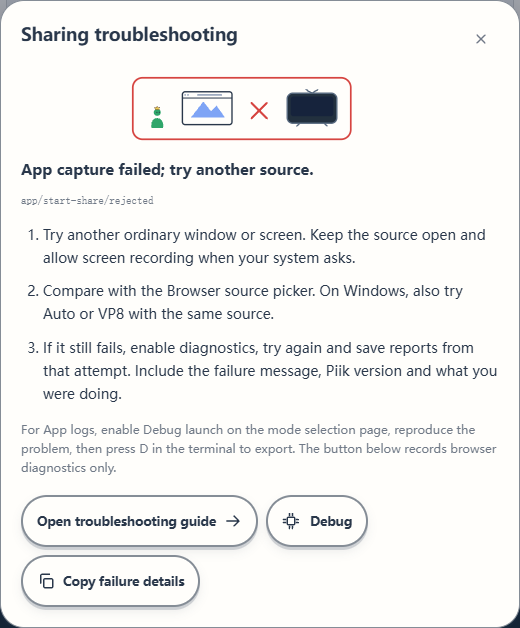
Sample App capture error. Your message and checks depend on what failed.
No screen picker
Allow screen recording when your OS asks. Browser screen capture needs HTTPS or localhost; try sharing from a desktop computer. In the source picker, choose Browser → Choose what to share to open the browser's screen, window or tab chooser. Missing App sources are covered below.
App windows or screens are missing
Keep App running on the sharing computer. Select App at the top of the site, confirm the site on the local approval page, and allow browser local-network access if asked. Refresh the list; review this site's permissions if previously blocked.
The source picker distinguishes these outcomes:
| Message | Next step |
|---|---|
| Cannot connect to Silip App | Confirm the App is running and this site is approved. Close unused Silip tabs using the App, then refresh the list; up to two pages can use the App's native capture or viewing at once. |
| Silip App and this page are incompatible | Update Silip App and reload the page. |
| Silip App capture is currently unavailable | Check the App diagnostics for capture or encoder availability. Review your encoding setting or use browser capture. |
| Could not read the screen and window list | Refresh to retry. If it keeps failing, export both the App and browser Debug reports. |
| No sources available | The list was read successfully, but this tab has no selectable sources. Check the other source tabs. |
Local-network permission lets the page contact App. For media failures after connection, check WebRTC settings.
Sharing does not start after source selection
Click the error icon below the TV for suggested checks, a copyable failure summary and browser diagnostics.
- App disconnected or request timed out: check that the App is running and responding, then click App at the top of the site to connect. Allow local network access if the browser asks.
- App could not start the selected source: try an ordinary window or screen, then compare with the Browser source picker. On Windows, try Auto or VP8 and follow graphics checks.
- Browser cannot read the source or permission is missing: keep the source open, allow screen recording and select the source again from the sharing page. For a camera, also check whether another application has exclusive use of it.
- Media connection failed: check browser WebRTC settings and local network permission. For room creation HTTP 403, check site configuration.
If it still fails, collect matching Web and App reports with the copied failure summary and selected source type.
H264 sharing fails on Windows
- Compare codecs on the same source. In Sharing settings → Picture → Fine-tune picture, change the video codec from H264 to Auto or VP8, then start sharing again. If VP8 works, you can keep using it while checking the H264 path.
- Update and restart. Update Silip App and Chrome, and install the appropriate graphics driver from your computer or GPU manufacturer's official support page. On laptops with two GPUs, check both drivers. Restart after installation.
- For Chrome, check graphics acceleration and GPU preference. In Chrome's Settings → System, enable graphics acceleration if it was disabled, then restart Chrome (Google's setting instructions). On a multi-GPU Windows PC, open Settings → System → Display → Graphics, select or add Chrome (
chrome.exe), and choose Options → High performance → Save. Completely quit and reopen Chrome before retrying. If it does not help, restore Let Windows decide (Microsoft's graphics settings).
Chrome's graphics preference applies to browser capture. Silip App selects its native encoder separately. If it still fails, save reports with the codec comparison. If both codecs fail, also check WebRTC restrictions.
Picture and playback
No connection · Blur / stutter · Black game capture · Washed-out HDR · Capture border · Fullscreen / sleep
When video will not connect
No media route available means Silip has not found a connection to deliver the picture. Check the viewing connection, browser policy and network:
- Retry the viewing page. Use Reconnect if available; otherwise refresh or reopen the invitation. Let each attempt finish. One or two fresh attempts are enough to compare; repeated refreshes cannot remove a network restriction.
- Check browser WebRTC settings. Browser settings, VPNs and privacy extensions can block media for both Host and Viewer. Follow the WebRTC checks.
- Try another network, such as a phone hotspot. Check your VPN/proxy's UDP policy; ask the administrator on a managed network.
- Invite a friend on another network. A Viewer who receives the picture and has spare forwarding capacity may give Silip another path to you. Silip chooses it automatically; extra people help only when those connections work.
Still failing? Continue with advanced network checks and collect reports from the Host and affected Viewer for the same attempt.
Picture blurs, stutters or stops
Brief blur can result from automatic adjustments to network or encoding load. If it recurs or never recovers, compare the following:
- Identify who is affected. Is it the host's preview, every viewer or just one viewer? Note the time and whether it recovers on its own.
- Change one thing at a time. The host can try a lower resolution or frame rate under Sharing settings → Picture, and check CPU/GPU load while the game runs. An affected viewer can compare another browser or a phone hotspot. Increasing bitrate does not necessarily help.
- Check the actual codec. Open the host's Connection details and read Video codec. On Windows, Auto may select VP8 when H264 is unavailable, its check cannot finish, or it cannot sustain the selected frame rate. Software encoding competes with the game for CPU time. For Browser capture, follow the graphics checks, or compare the App's window/screen capture. The App tries available hardware encoders independently. Keep Auto or VP8 when the H264 check fails.
- Save reports from the affected period. Follow report collection for the Host and affected Viewer; App capture also needs an App report. Try Reconnect if the picture does not recover. Export before refreshing.
If sharing stopped altogether, read the reason below the TV and follow sharing startup checks. If the host is still sharing but viewers cannot receive video, follow connection checks.
Game capture is black or sharing stops
Check that you selected the game's window or the screen displaying it, then try the game's borderless window mode. Compare an ordinary window, and try both App capture and the Browser source picker. Protected content may be unavailable for capture.
If Silip returns to the start screen after you enter a game, read the reason below the TV and follow sharing startup checks. Include the game and window mode in your report.
HDR picture looks too bright or washed out
Windows App capture through Apps / Windows or Screens converts HDR to SDR for viewers. The Browser picker uses browser capture instead; some HDR sources can look overexposed. Try the App categories above, or temporarily turn off HDR in Windows display settings and select the source again. Higher resolution or bitrate cannot restore clipped highlights.
If it persists, report the HDR setting and GPU/display model with source/viewer comparison pictures. See HDR capture notes for background.
Yellow capture border on Windows
Windows draws this outline to identify the window or display being captured. When the App's capture runtime supports it, the source picker offers Show capture border, off by default. Windows permissions or another active capture can still require the border. Windows 10 does not provide this control for its capture API.
Windows 11: the border is still visible
- Select Apps / Windows or Screens in Silip and leave Show capture border off. A Browser-selected source uses the browser's own capture indicator.
- Stop other apps or tabs capturing the same window/display, then restart sharing.
- If Windows denied borderless capture, review Screenshot borders in Windows privacy settings. Its settings page can also be opened with
ms-settings:privacy-graphicscapturewithoutborderfrom Win+R, when available.
Windows requires consent and can retain the border when another capture requests it (Microsoft's API documentation). If it persists, include the Windows version and an App report.
Advanced: optional Windows 10 workaround
Optional Windows 10 workaround
DWM Custom Projection Border is a third-party Windhawk mod for x64 Windows that can hide the border while keeping the same capture method. It changes Windows' desktop compositor and affects other apps' capture indicators too. Follow the mod's Windows version requirements.
- Install Windhawk from its official website.
- In Windhawk's global Settings → Advanced settings → More advanced settings, append
dwm.exeto Process inclusion list and save. Keep existing entries. - Find and install DWM Custom Projection Border. In the mod's settings, turn on Disable border and save.
- Stop and restart sharing in Silip, then check whether the border disappears.
To undo this, disable the mod and restart sharing. Remove the dwm.exe entry if you added it only for this mod. If desktop problems appear or a Windows update breaks compatibility, disable the mod first.
See the mod author's instructions and Windhawk's process settings for current setup details.
Fullscreen or playback after sleep
- Playback controls are hidden: tap the picture to bring them back. During remote control, use the drawer tab at the TV's bottom edge.
- Fullscreen is missing or rejected: open the invitation in a standalone browser, such as Chrome on Android or Safari on iPhone, instead of a chat app's embedded browser. Theater mode expands playback within the page when the browser does not offer screen fullscreen.
- Silip controls disappear in fullscreen: the browser has opened its native video player. Exit fullscreen and use Theater mode to keep Silip's playback controls, chat overlay and remote input on the page.
- Phone fullscreen has black bars: video preserves its proportions. Try landscape, or use Switch picture fit on the playback bar to select Fill or Stretch. Exit the browser's native video player to use Silip's picture-fit controls. See viewing controls.
- Sharing stops after sleep or suspension: wake the device and return to the sharing tab. Start sharing again if needed; browser and OS suspension can interrupt capture or playback.
Sound and browser permissions
Source sound · Room voice · Echo / unwanted sound · Microphone / control permissions
Picture but no source sound
- Unmute the video and check your playback volume.
- The Host should select a source with shareable audio and enable its sound in the source picker. Available sound depends on the source and platform.
- Camera video and microphone inputs are selected separately. For a built-in camera microphone or OBS audio, see camera and audio inputs.
Cannot hear someone speaking
For speech added through Include my microphone, check the picture's source sound and the Host's Sharing settings → Sound. For room voice, follow these steps:
- Both people join Interact → Voice; the Host selects Open room voice first. Joining only starts listening. Each speaker must turn on their own microphone.
- The speaker checks browser microphone permission, input device and input volume in Voice settings. Microphone access needs HTTPS or
localhost. - Check whether you paused listening or muted that person locally. These controls are separate from video mute; Pause listening leaves your microphone on.
If voice reports a connection failure, compare WebRTC settings and another network. See room voice for its controls.
Echo or unwanted application audio
Use headphones if speakers are feeding sound back into a microphone. Windows App screen capture can exclude a voice app from source audio; this does not remove acoustic echo.
If a virtual microphone remains audible when muted in Silip, temporarily turn off System sound. If that removes it, the mixer's playback output is also entering source audio. Check its playback/monitoring route or share only the desired app's window audio. Silip's microphone mute does not mute that separate source.
Microphone or remote controls are unavailable
- Open the complete HTTPS invitation generated by the current App. For a local invitation, confirm its certificate first. A plain HTTP LAN page can play video, chat and listen to voice, but cannot use the secure microphone/camera capture or remote-control APIs. Changing only the URL scheme does not enable HTTPS;
localhostmeans the current device. - For a microphone, review this site's browser permission and selected input.
- For remote control, update the Host's App and the site, then refresh the Viewer page. The Host must use desktop App window/screen capture and enable control; Browser and camera capture cannot receive remote input. Android can share its screen and control a desktop as a Viewer, but cannot receive remote control; its Host page therefore has no enable-control action. Follow the authorization steps.
If your browser cannot accept the local certificate, use a reachable Public invite or an HTTPS site with a trusted certificate.
Gamepads
The gamepad does not respond
- The Host shares an App window or screen and enables Remote control.
- Check the Host against supported platforms and gamepad setup. The Host installs external drivers from the official source; Silip includes no input SDK or driver. Turn Remote control off and on after installation.
- The Viewer connects a standard-layout controller and presses a button so the browser detects it, then obtains remote control. Silip automatically uses the first connected controller with the browser's standard mapping. Keep the viewing page focused and join the corresponding player in the game. If all controller slots are occupied, disconnect an unused controller or end that Viewer's remote control.
Viewers only need their browser. Driver checks and installation belong on the Host.
Advanced network checks
If the page opens but picture or voice will not connect, use the network guide. Choose a section below:
Campus networks and strict NAT
Choose a connection option for campus or work networks. View steps.
Browser WebRTC restrictions
Check settings when the same invitation works in another browser. View steps.
STUN, IPv6 and router checks
Read discovery logs or check a router you manage. View steps.
Optional: a virtual LAN
Use Local room over Tailscale, ZeroTier or UU. View steps.
Reporting a problem
Include the Silip version, OS/browser, time, expected result and reproduction steps. For capture problems, add the source type, codec, GPU/driver and whether another source or VP8 works. For network problems, add the network type.
Enable diagnostics before reproducing once, then export before refreshing:
- Web: use the page's diagnostics button. A sharing failure's error icon below the TV also provides a copyable summary; it contains the Web version, message and code, without invitation links or source names.
- Desktop App capture or remote control: also enable Debug launch on the Host App's mode selection page, then press
Din the terminal to export its report. - Connection failure: collect the affected Viewer and Host reports for the same attempt. For self-hosted SFU, include the Server report too.
Reports stay on your device. Review private information before sharing them; diagnostics and export explains their contents. If you cannot collect logs, send the full error text and reproduction steps.
For other guides, return to the documentation home.