Chat, voice and remote control
Chat and voice work before, during and after picture sharing. Remote control requires an active App window or screen share.
- Chat and reactions: join the room and open Interact → Chat.
- Room voice: the Host opens room voice; each speaker enables their own microphone.
- Remote control: the Host shares an App window/screen, then enables and authorizes control.
Chat and reactions
- Select Interact below the sofa, then open Chat and send a message.
- Select a person on the sofa or an avatar in Chat/Voice to open their reaction menu. More reactions opens the full palette.
- Move or resize the interaction window to keep it beside what you are watching.
Your own reactions appear above you; reactions sent to a friend fly towards them.
Keep chat above a game
Supported desktop browsers show Open in always-on-top window in its top-right corner. You can read messages, see reactions and select someone to interact with while playing. Keep the Silip page open; closing the small window returns it to the page. Use a windowed or borderless game; exclusive fullscreen may cover the window. The window has an opaque background and receives mouse clicks.
On screen, beside the message box or in the playback bar, shows new messages over the picture. It is off by default and only changes your own view. Use Playback settings → On-screen chat for text size, opacity, scroll speed and Use participant colors. The default is white; participant colors follow the sender's seat. Speed changes apply to new messages. System video fullscreen and picture in picture cannot show these overlays.
Stopping a share keeps the room's chat available. App Local and Public invite rooms require the App to stay open. Each page retains only its latest received messages: refreshing clears them, and late joiners receive no earlier history. To keep a copy, use Chat settings → Export chat to save the latest messages retained on this page (up to 1,000) as a text file. Chat travels through the room's server and is not end-to-end encrypted.
Room voice
- The Host creates a room and sends its invitation; no picture share is needed.
- The Host opens Interact → Voice and selects Open room voice. Room members can then select Join voice, without another approval.
- To speak, select Microphone and grant browser access. Joining alone never turns on your microphone.
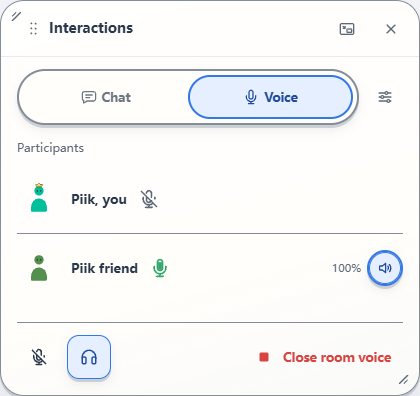
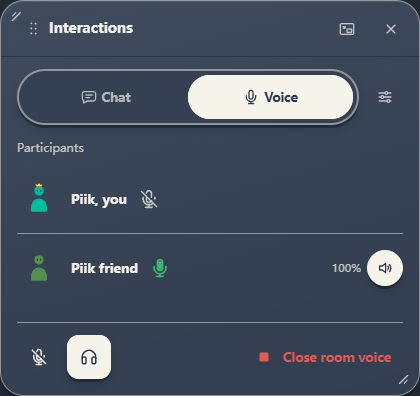
Host view with sample participants. A Viewer sees Leave voice instead of Close room voice.
Microphone capture needs browser-accepted HTTPS or localhost. Use the App's HTTPS invitation for LAN and virtual-LAN rooms.
- Microphone: a slashed icon means off; its green fill rises with your input level. A participant's microphone icon lights up when speech is received.
- Listening: the headphone button pauses room voice only for you. A person's speaker button mutes just that person locally. Neither changes your microphone or the shared picture's sound.
- Volume: hover over the microphone, headphones or a person's speaker to adjust it; on touchscreens, press and hold. Each level is 0%–200%, default 100%. A person's volume combines with your master listening level.
Voice settings, beside the tabs, contains the input device, microphone and listening volumes, and noise/echo reduction. On supporting sites, the Host can also set Room voice bitrate; the default is 64 kbps per speaker. Browser and App-backed sharing use these same voice controls.
Connection topology at the bottom of the room shows current media routes. Idle room members stay visible without a connecting state. Connection details groups shared picture/audio and room voice separately; voice routes remain available after picture sharing stops.
Voice stays connected when picture sharing stops. It also stays active when you close or detach the interaction window. Viewers choose Leave voice to leave; the Host's Close room voice ends voice for everyone. Reopening does not rejoin Viewers or turn on their microphones.
Source sound, echo and remembered settings
Host speech in room voice uses this same room microphone; viewers join voice to hear it. The optional share microphone instead travels with the picture and stops with sharing. Enabling both may deliver your speech twice; neither microphone switches or mutes the other automatically.
Source sound stays with the picture. Room voice favors timely conversation and can arrive ahead of a delayed picture. Use headphones; whole-system sound sharing can include received voices, so audio exclusion may help on supported App capture paths.
Microphone and master listening settings stay in this browser on the current site; person volumes apply to current room participants. Settings never reopen your microphone automatically. Keep noise and echo reduction on for ordinary speech, or turn it off when the selected input already processes your voice.
Let a friend control your shared screen
Share an App window or screen, enable Remote control, then approve your friend. See remote control and playing together for keyboard, mouse, multiplayer and optional gamepad setup.